Tutorials
Create a Custom Sample
Record your own sound, trim it with Magic Trim, and use it as a metronome click.
More tutorials coming soon: Advanced beat configuration, Drone setup, Apple Watch pairing, Foot pedal configuration...
Create a Custom Sample
Record your own sound, trim it with the Magic Trim waveform editor, and use it as a metronome click on any beat.
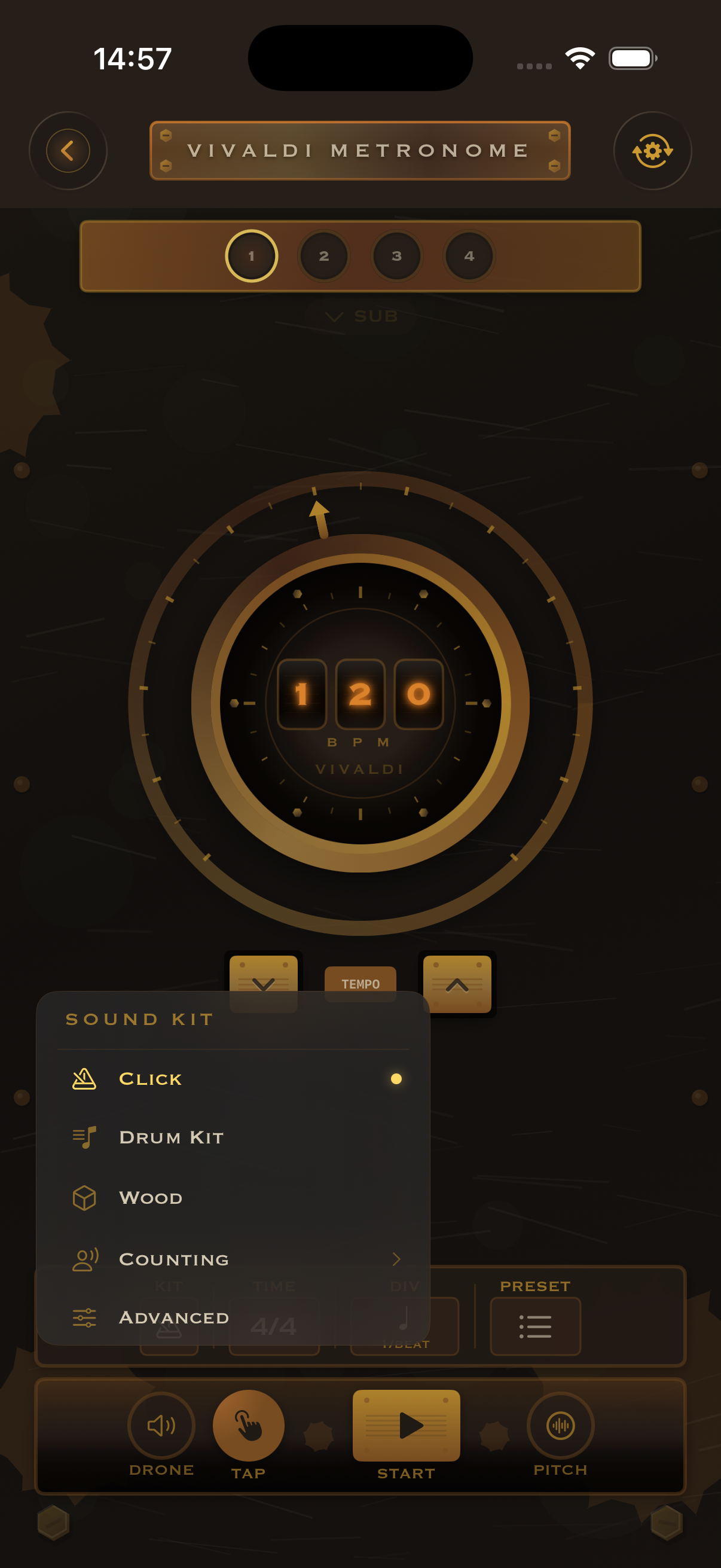
Open Sound Kit selector
From the Metronome view, tap the Sound Kit area to reveal the 5 available modes: Click, Drum Kit, Wood, Counting, and Advanced.
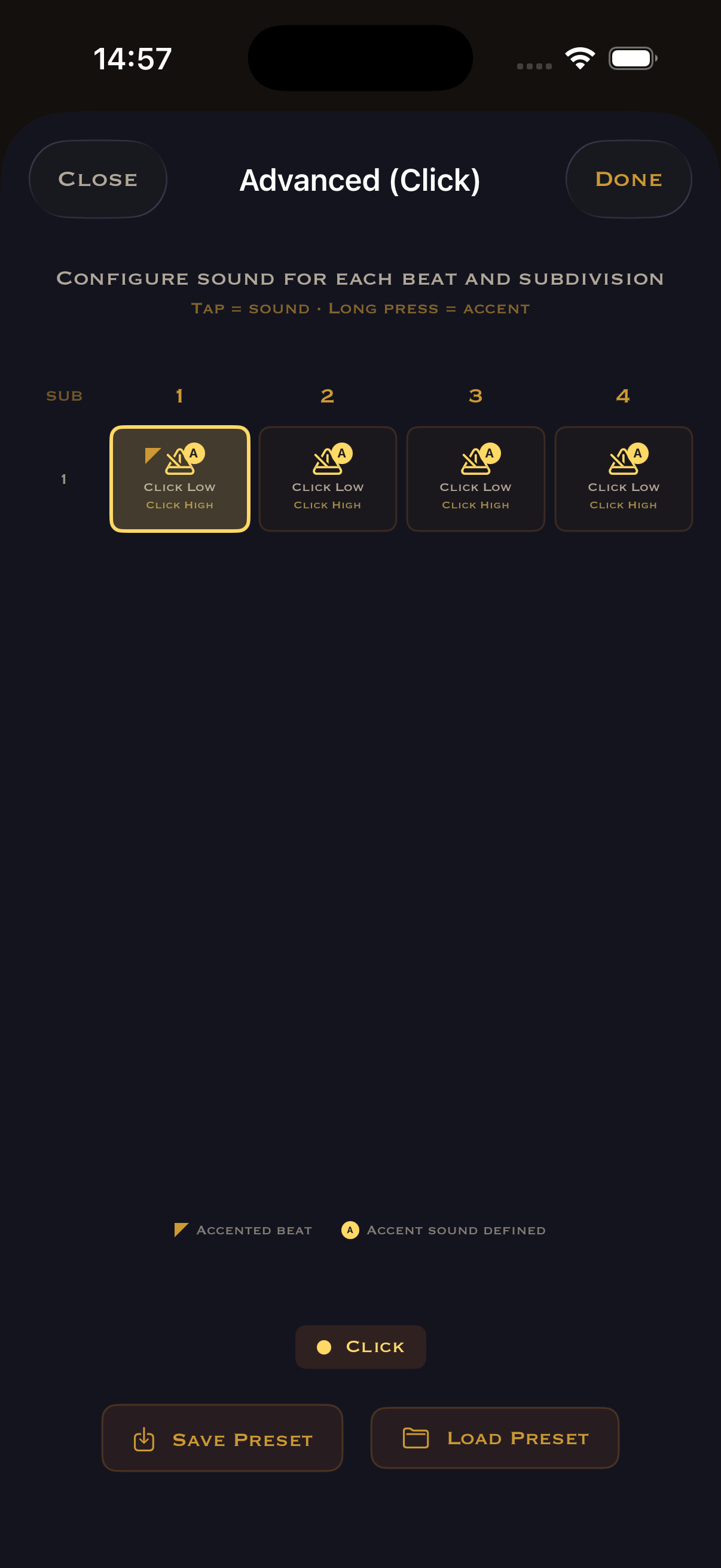
Advanced Beat Config
Select "Advanced" to open the beat/subbeat grid. Each cell shows the assigned sound. Tap a cell to change its normal sound, long-press to set its accent sound.
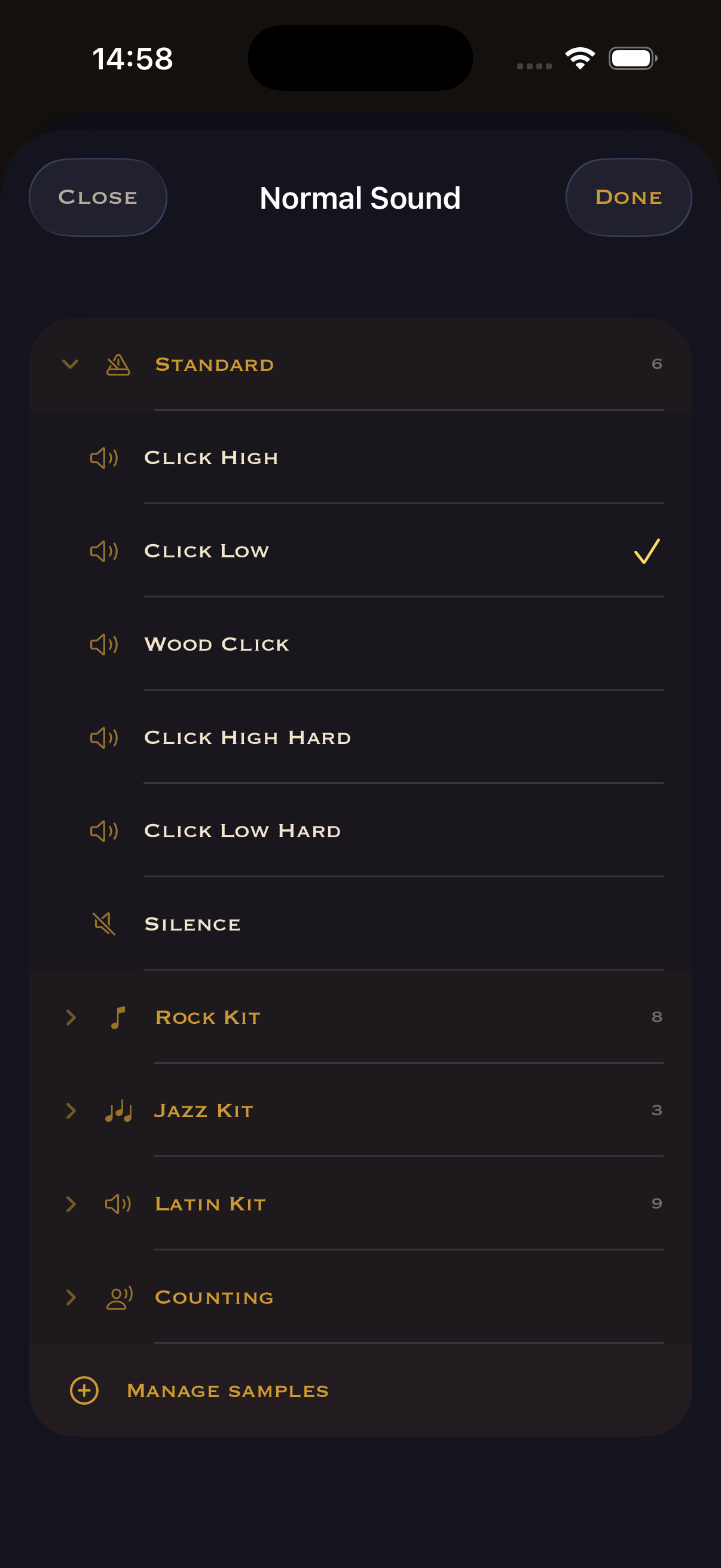
Browse the Sound Library
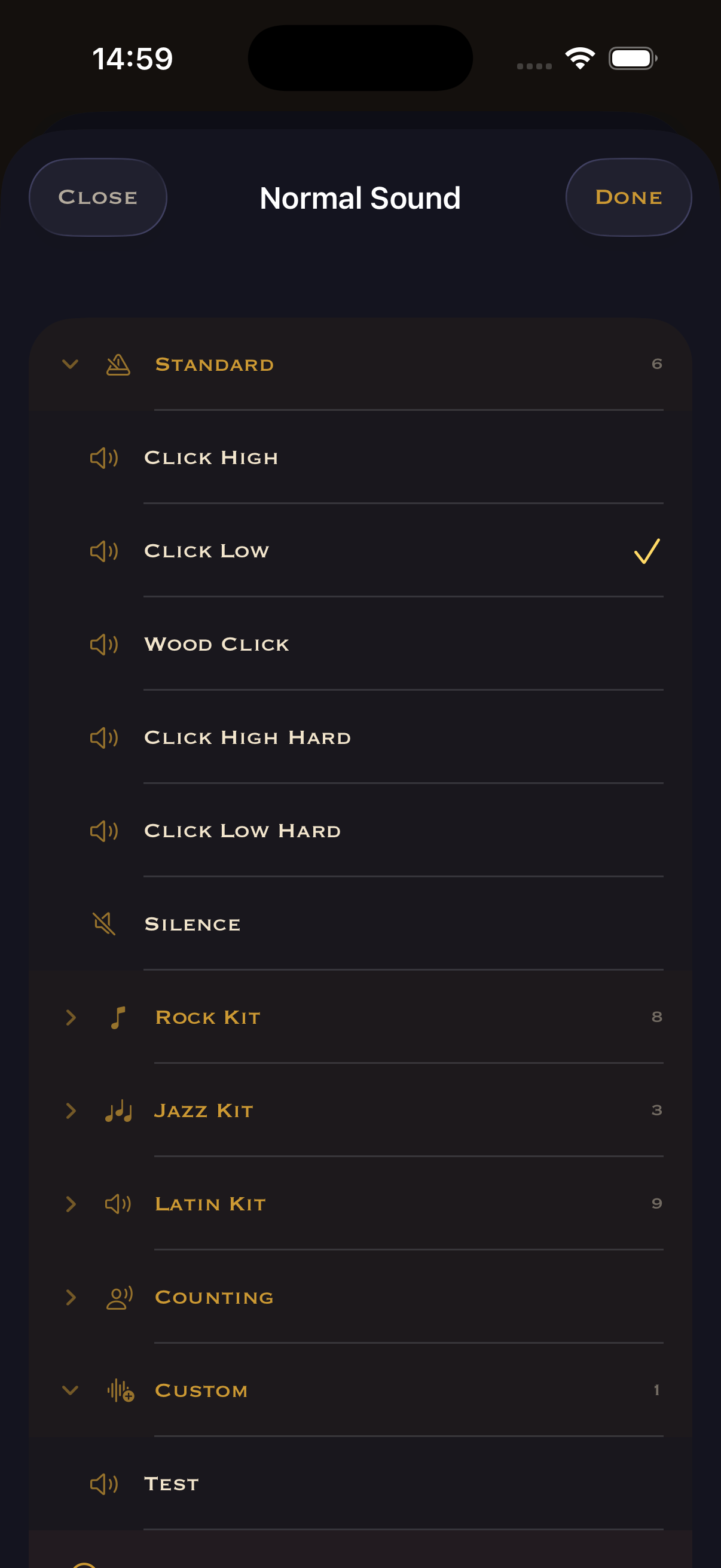
The full sound library: Standard (6), Rock Kit (8), Jazz Kit (3), Latin Kit (9), Counting voices. Scroll to the bottom and tap "Manage Samples".
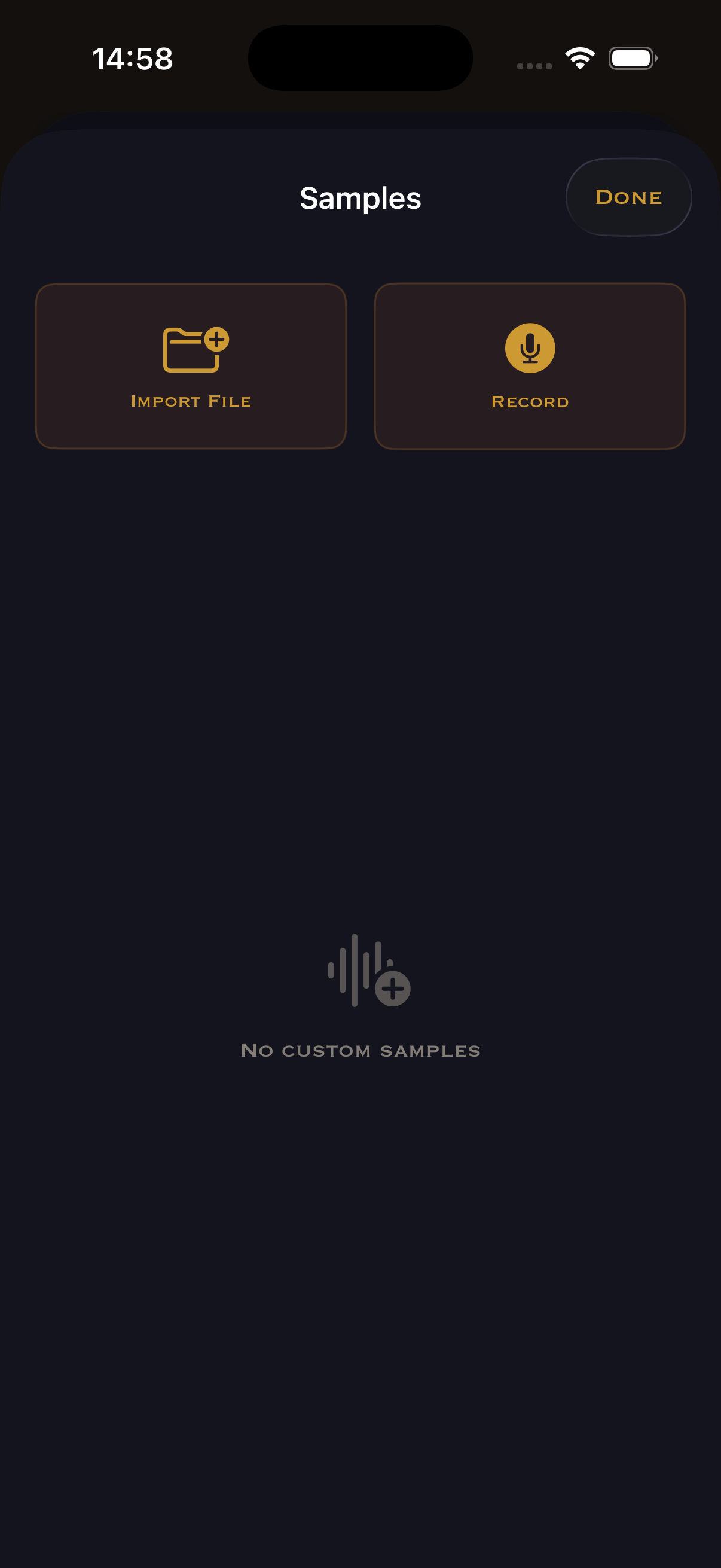
Samples Manager
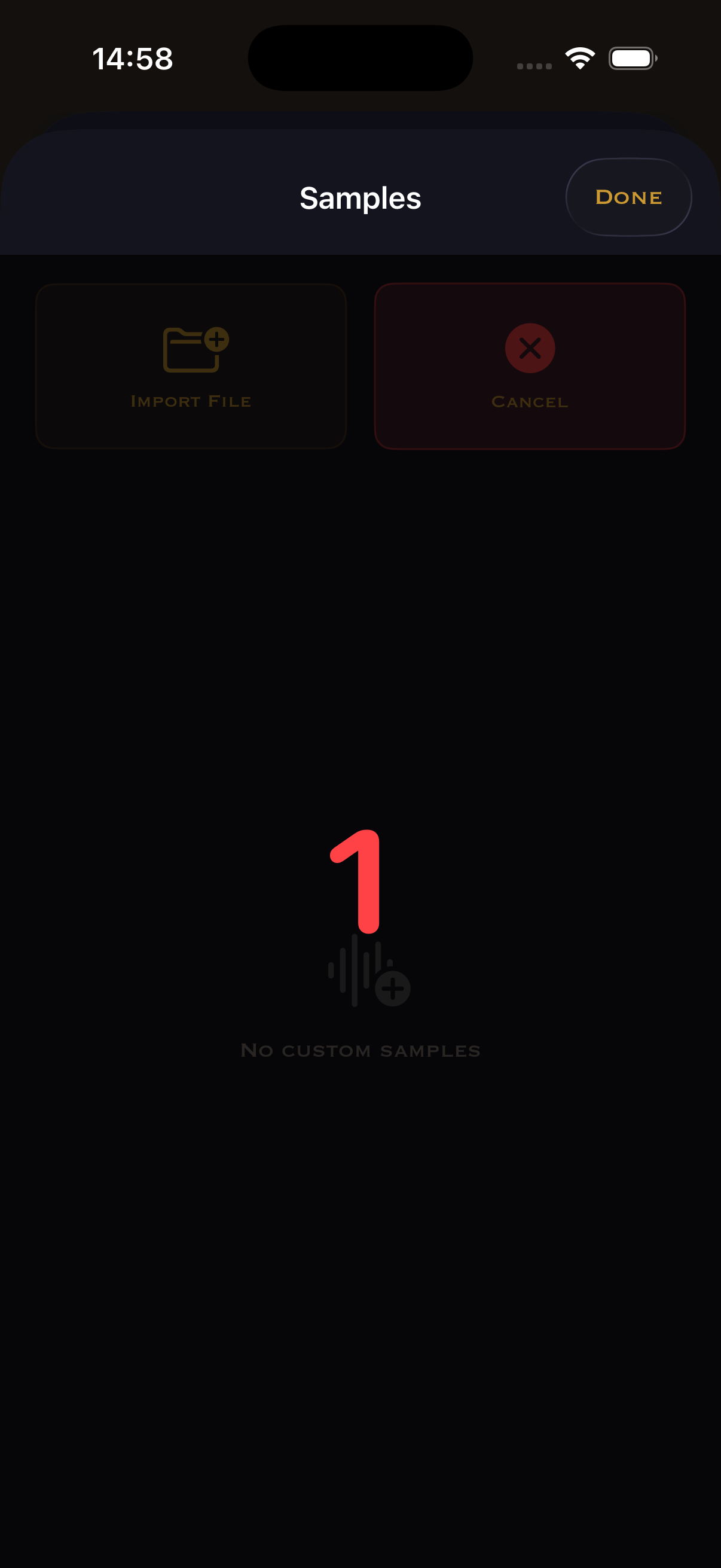
Two ways to add custom sounds: Import an audio file from your device, or Record a new sample with the microphone. Tap "Record".
Record your sample
A countdown starts (3, 2, 1...). Make your sound — clap, tap the table, hit your instrument, anything you want as a click.
Name your sample
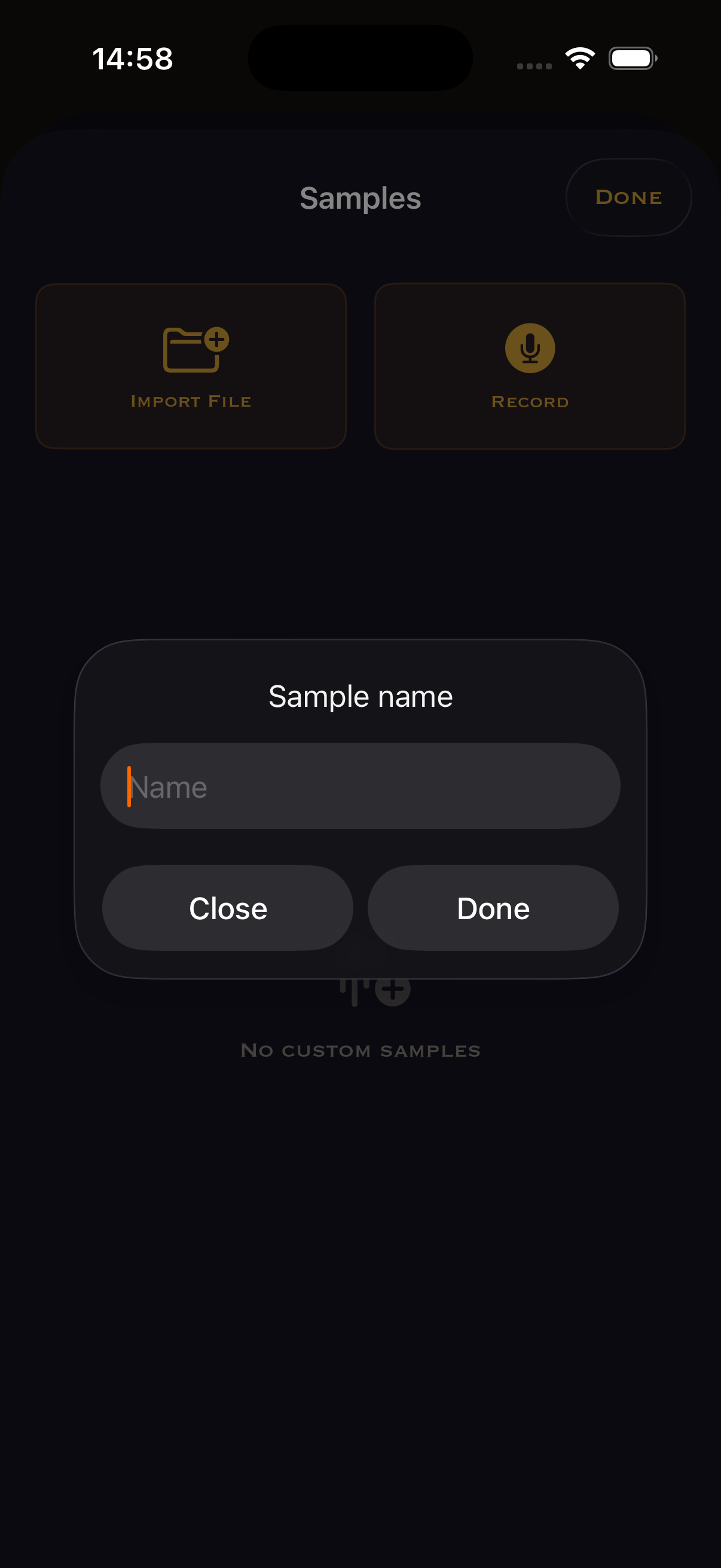
Choose a descriptive name — you'll see it in the sound library later. Tap "Done" to proceed.
Magic Trim
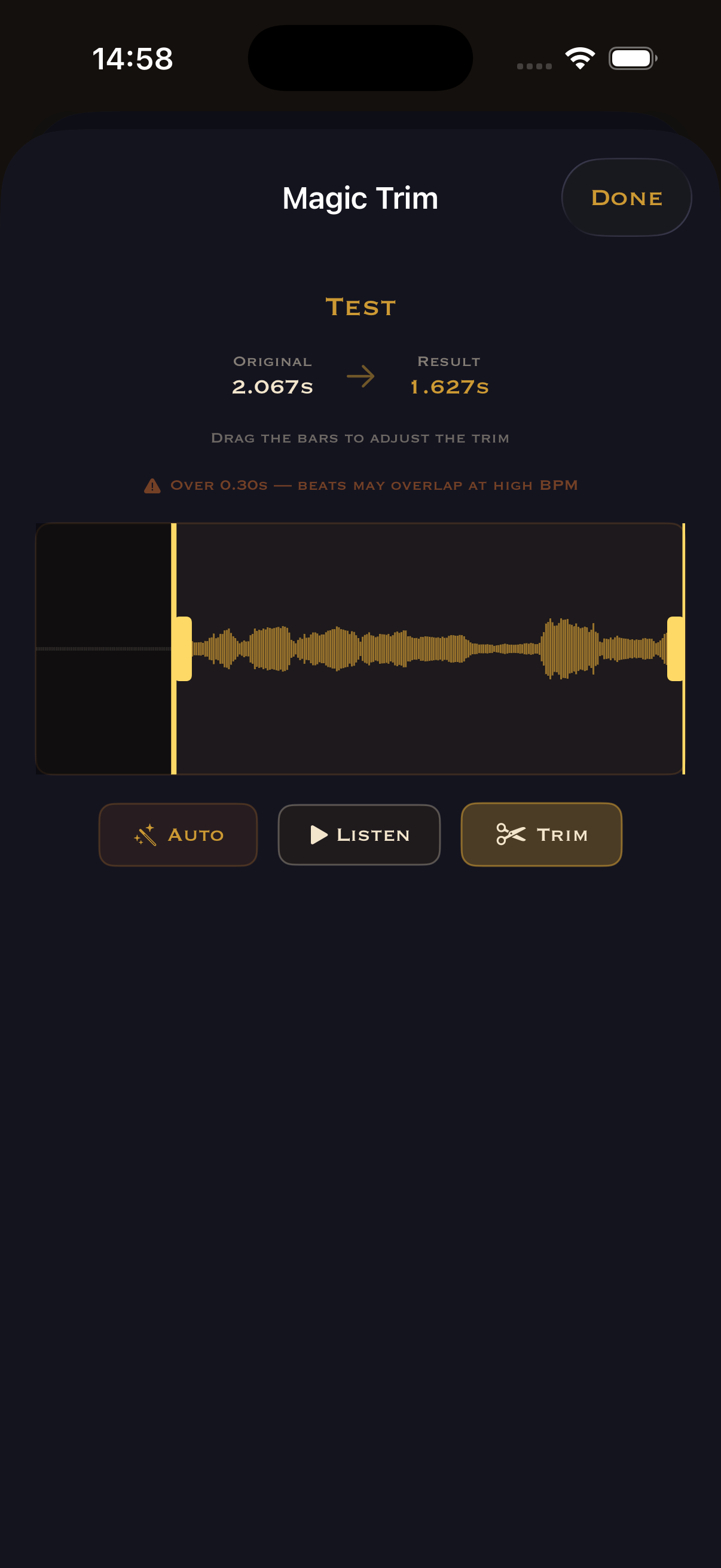
The waveform editor opens. Your recording is 2.067s — way too long for a metronome click. Drag the yellow bars to isolate just the hit. Warning: >0.30s means beats overlap at high BPM.
Adjust the trim
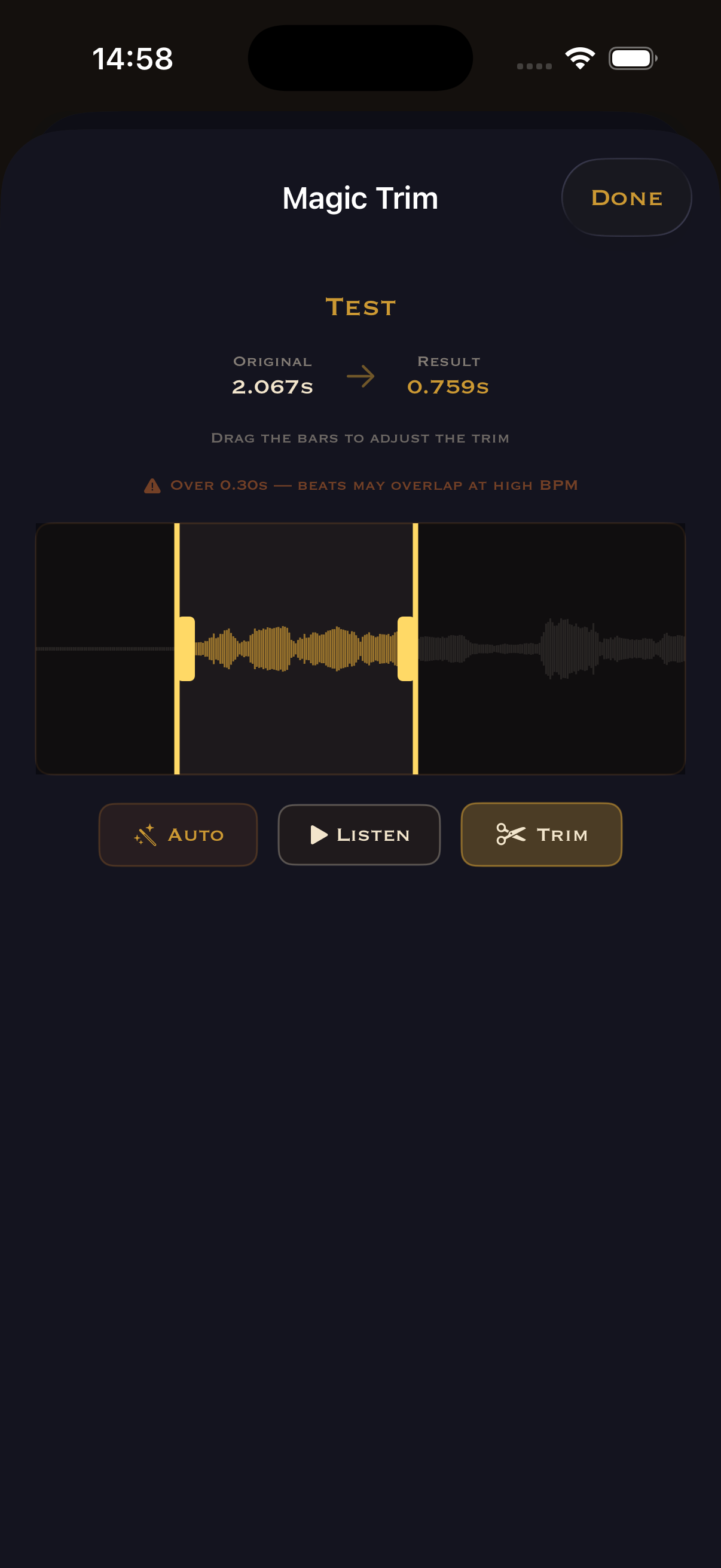
Drag tighter. "Auto" detects the best trim automatically. "Listen" to preview. When happy, tap "Trim".
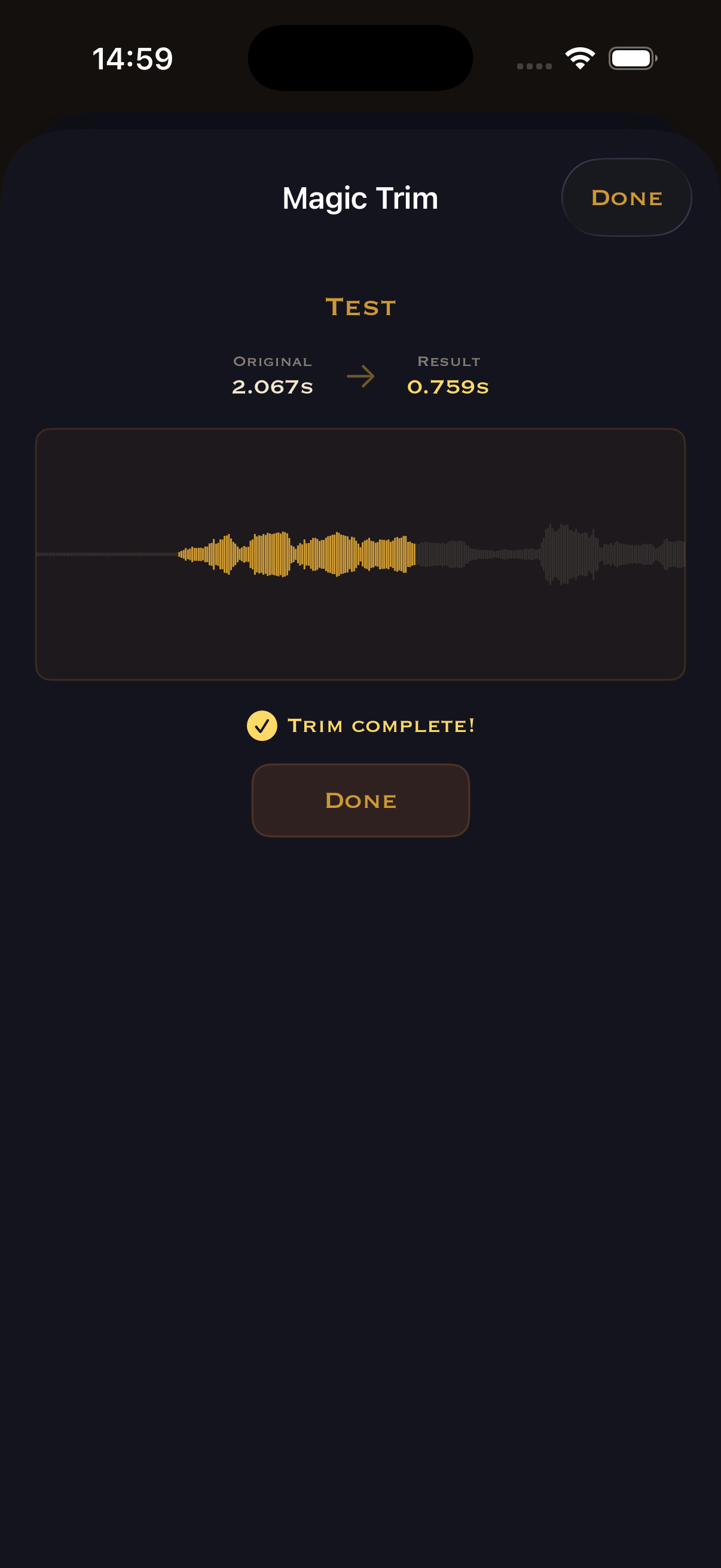
Trim complete!
Done — the trimmed waveform is saved. Tap "Done" to go back.
Custom sample ready
Your sample "Test" appears under "Custom" at the bottom of the sound library. Select it to assign it to any beat or subbeat in the Advanced grid.